
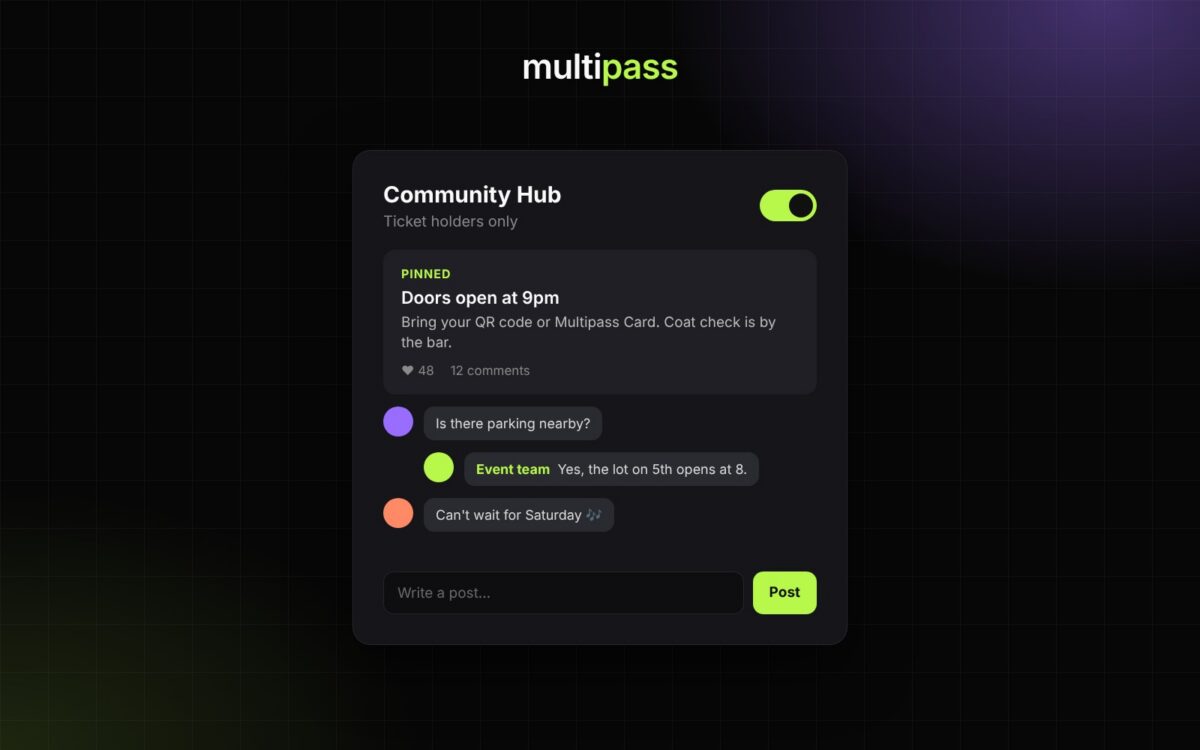
Between the moment someone buys a ticket and the moment they walk through your door, they have questions, and they want to feel like part of something. Every Multipass event comes with its own Community Hub: a ticket-holders-only board where your team and your attendees post, comment and reply, plus a private event chat where attendees can message you directly. Here’s how to set it up and run it well.
What the Community Hub is
- One hub per event. Each event has its own message board where ticket holders and your event team can post, comment, reply and like.
- Ticket holders only. Attendees need to be signed in and hold an active ticket to get in. Someone who’s signed in but doesn’t have a ticket is sent to your event’s ticket section with a prompt to get a ticket and join the conversation.
- Private event chat. Attendees can also message your event privately. Anyone on your team who manages the event can answer, and replies are signed as the event, not as a person.
- Easy to find. Attendees reach the hub from your event, and your organization’s Community page lists the hubs they can open.
Learn more: Marketing: Email, Text & Tracking
Turn it on for your event
- Open your event in the organizer dashboard and go to Community Hub > Posts.
- Turn on Enable the community hub. Note that this switch also opens your event’s attendee list, so ticket holders can see who else is going.
- Optional: set Show attendees after this many tickets to keep the community out of view until a set number of tickets has sold. Leave it empty (or 0) to show it from the first ticket.
- Optional: choose Email me when someone comments. This is your own notification setting, not the event’s.
- Click Save settings.
You can switch the hub off again at any time. When it’s off, attendees can’t open it, but your team still can.
Post updates from your team
The hub works best when your team leads. To write a post, click Add post, add an optional Subject, write your Post, and click Publish post. A post can be text, a photo, or both. To add a photo, use the image button in the editor’s toolbar to upload one or pick one from your organization’s image library.
Good things to post, in the order attendees usually need them:
- A welcome post when tickets go on sale, so the hub never looks empty.
- Lineup and schedule news as it’s confirmed: set times, special guests, opening acts.
- Know-before-you-go details the week of the event: doors time, parking, dress code, what to bring, entry rules.
- Day-of updates: line status, weather changes, where to find the entrance.
- A thank-you after the event, with photos and a heads-up about your next date.
Pinned posts always show first, so pin the one post every attendee should read (usually the know-before-you-go details).
Keep the conversation friendly
You moderate from the Posts list. Every control is quick and most can be undone:
- Pin a post to keep it at the top.
- Hide a post to remove it for everyone except your team.
- Lock a post to keep the thread visible but stop new comments.
- Remove a comment you don’t want in the hub. This one is permanent, so Multipass asks you to confirm first.
Pin, Hide and Lock can all be reversed later. A short pinned post with house rules (be kind, no reselling tickets in the comments, message us privately for order questions) sets the tone before anything needs moderating.
Answer attendees privately with event chat
Some questions don’t belong on a public board: an order problem, an accessibility request, a name change. Attendees with an active ticket can start a private conversation with your event, and each attendee gets one thread per event.
- Find every conversation under Community Hub > Event Chat. Open a thread and type your reply.
- Replies are signed as the event, so attendees get one consistent voice no matter who on your team answers.
- Your team shares one “read” status per event. When one manager opens a thread, it’s marked as read for everyone, so decide who watches the inbox on show day.
- The thread list shows each attendee’s name and email, so you can match a question to an order quickly.
Learn more: Event Day: Getting In (what attendees see on event day)
Choose who on your team can manage it
Your organization’s owner and managers can run the hub. You can also give other team members access through roles and permissions, including permissions to send community announcements and moderate chat. The Community Manager preset covers the community tools in one click.
Learn more: Your Event Team & Permissions
Make it part of your event plan
A hub that’s set up and then forgotten won’t get much use. Treat it like any other channel: put two or three posts on your promo calendar, mention the hub in your confirmation emails and on social, and point attendees to it for last-minute updates. For more ways to keep people engaged between events, read Keep your audience engaged between events, or see everything included with Multipass event ticketing.
Get started
The Community Hub is included with every Multipass event, with no subscription or monthly fee. Organizers keep 100% of their ticket price with instant payouts, and attendees pay the 5% + $1.50 service fee by default (or you can choose to absorb it). Start selling with Multipass.